Posted: June 26th, 2011 | Author: max | Filed under: New release | Tags: release | 4 Comments »
(Cross-posted from the Exadel blog)
On June 15, Tiggr left beta and became an official release. As part of this release there is now a scheme of different plans for how you can use Tiggr. Although the terms are covered in the Tiggr application and Web site, I thought I’d go over the plans as a blog entry.
The thing to keep in mind is that Tiggr is structured as accounts tied to single primary users. The account has one workspace owned by the primary user that contains projects that each contain screens (or pages). The workspace owner and additional users up to a set limit have access to the workspace.
With the user management feature, the workspace owner can specify access rights on a user-by-user and project-by-project basis. With this feature, the account owner can add other users up to the limit for their plan or delete other users – freeing up a slot. (Remember, deleting a user only removes their access to your workspace. It doesn’t affect an account owned by the user or the user’s access to other workspaces.)
| Plan |
Cost |
Number of Projects |
Screens per Project |
Users |
Data Storage |
| Free |
$0 |
1 |
5 |
2 |
1 Gb total |
| Professional |
$15/user/month |
No limit |
No limit |
Number purchased |
2 Gb/user |
| Education |
$0 |
No limit |
No limit |
No limit |
2 Gb/user |
| Enterprise |
Custom |
No limit |
No limit |
Custom |
No limit |
| Temporary Professional for Previous Beta Users |
$0 |
No limit |
No limit |
Number of invitees from beta account plus 1 |
2 Gb/user |
| Plan |
Notes |
| Professional |
- Starts as a 15-day trial with credit card info provided up front.
- Billing (and billing cycle) starts 15 days later on the credit card unless account owner takes action.
- The cost of $15/user/month is a promotional price for the launch of the new version. At some point, it will rise to $20/user/month, but people who sign up before Sept. 30, 2011 lock this rate in permanently.
|
| Education |
Requires all users to be affiliated with an educational institution and use valid e-mails ending in .edu. |
| Enterprise |
May include extra features like custom Web storage, white-labeling, and SSO. |
| Temporary Professional for Previous Beta Users |
No cost for 3 months until September 15th. Downgrades to free plan unless account owner converts to professional. |

How to get to the user management console

Assigning and inviting a user to the workspace
Posted: June 24th, 2011 | Author: max | Filed under: Events, Webinar | Tags: events, webinar | 1 Comment »
UPDATE: Due to schedule conflict, this event has been cancelled.
If you’ve ever designed a user interface as part of a large team or for a customer, you know how valuable it is to get a prototype out there for feedback as soon as possible. Mockup tools, although helpful, only provide a static, not an interactive, view of the UI.
Join us to learn about Tiggr for Prototypes - a Web-based tool for easily building and sharing interactive HTML prototypes for Web and mobile applications. These application prototypes not only look like the real applications, but also behave like the applications.
This webinar will walk through several examples, so you can see how easy it really is. In this webinar, we will learn about Tiggr for Prototypes’ Web components, mobile components (based on jQuery Mobile), Web Preview, sharing, events/actions, templates, and much more using prototypes we build online. At the end, we’ll also give you a brief sneak peek of Tiggr Mobile Application Builder and Tiggr Mobile Tester.
Title: Tiggr: Collaborative Software Development in the Cloud Made Easy
Date: Tuesday, July 12, 2011
Time: 11:00 AM - 12:00 PM PDT
Register now: https://www1.gotomeeting.com/register/243366976
Posted: June 23rd, 2011 | Author: max | Filed under: Articles | Tags: article | 2 Comments »
(Cross-posted on Maxa blog)
Sasha Piskun is Tiggr’s Chief Architect. Sasha recently moved to Exadel’s Concord office from Exadel’s Donetsk office in Ukraine. He has many years of experience designing and building large enterprise applications. We are very happy to have him in Concord where he leads Tiggr development and prepares Tiggr Mobile App Builder release in late summer. Learn more about Tiggr Mobile Apps Builder and sign up for private beta here.
Please describe the application.
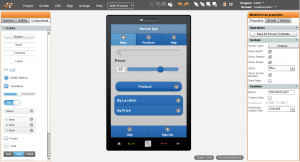
Tiggr (http://gotiggr.com) is web-based application for building and sharing interactive HTML prototypes. Here are some main Tiggr features:
- Web-based, nothing to install or download
- Use large number of web components and layout containers
- Use jQuery Mobile components to design mobile prototypes
- Create highly interactive prototypes by defining events such as opening a pop-up and navigating between pages.
- Share and collaborate during design with users and customers to get feedback
- View and share the prototype in any web browser and mobile browser to get feedback
- Create and use page templates
- Create and use custom components
- Add notes and comments to prototype with annotations feature
- Export to HTML to view the prototype locally or use as starting point for application UI.
You should be able to create prototype which look and behave as close as possible to the real application and Tiggr will allow you to do that. Anyone can try creating their first prototype at http://gotiggr.com.
I also want to take a step back and tell readers why mockups, which many are familiar with are different than prototypes. Many readers are probably familiar with mockups and might be wondering why not use mockups. Mockups are used in many projects, usually during project requirements phase to show how the UI will look.
Mockups is good tool to use, however, mockups suffer from a number of drawbacks today. First of all, mockups are static. Today, interfaces are very interactive with Ajax-like features and it also very common now to use pop-ups in application UI. Expressing such interactivity or navigation is just not possible with static mockups. The most you can really get from a mockup is a image.
Secondly, mockups don’t give you a realistic view of the UI. Mockups are typically drawn using lines and shapes such as boxes, circles, and rectangles. You sometimes also get hand-drawn like components. With such tools you can create an outline or draw the shape of various UI elements; however, this won’t give you a realistic view of the user interface.
There is a big gap between the mockup and how the application will look inside a web browser.
Thirdly, sharing and collaborating is usually done using the same old approach – e-mail. Most mockup tools let you save the mockup as an image which can then be shared via e-mail. Getting feedback or collaborating on the mockup becomes a challenge. You end up e-mailing the mockup image back and forth among project members asking for feedback followed by the resending an updated mockup image.
How many users were there for this application, and what stage is it in currently?
Today Tiggr is used by thousands of users. We see a steady increase in new registrations and users.
How large was the development team, and what were the different roles?
The team that develops Tiggr consists of 1 System Architect, 6 Java developers and 4 Flex developers. Tiggr team also has 2 quality assurance engineers. This team structure is rather flexible, the actual number of people working depends on the scope in current release.
What resources did you use (books, web sites, consultants)?
As the creators of RichFaces, we used our expertise in-house to build the application. Same thing for Flex. We have used Flex on numerous projects and have very strong Flex experts in-house who we used for build Tiggr.
What have the users said about the application?
We have been getting very positive feedback. Although there are a number of existing mockup creation tools out there, the market was ready for next generation tool. Just an image is not enough today. Users want to view the prototype in a web or mobile browser, users want to define events and actions such as navigation, open a pop-up or hiding/showing a component.
What is your development platform?
Tiggr technology stack consists of the following:
- JSF 1.2
- RichFaces 3.3.3
- JQuery 1.5.2
- JQuery Mobile 1.0.a4
- FreeMarker 2.3.9
- Seam 2.2
- JPA/Hibernate 3.3.1.GA
- Flex 3
- Flamingo 2.1
As for development tools (IDE), our team uses JBoss Tools and Flash Builder 4.
Tiggr uses an interesting mix of technologies. We used JSF with RichFaces for pages such as Login, Projects list page, and Profile page. The back end is Seam, and naturally we used JPA for persistence. I guess so far it’s not that interesting. Now, when you open any particular project, the actual editor where you design the prototype is Flash/Flex. The Flex portion talks to the same Seam-based back end. The communication between Flex and Seam is done with Exadel Flamingo (http://exadel.org/flamingo).
I’m sure some readers might ask, why not use HTML everywhere, even for the editor? When we launched Tiggr last year, we wanted (of course) to get something fast out there. We had Flex expertise in-house and knew that what we are trying to do can be done with Flex. Today it’s definitely possible to accomplish with HTML5. It’s possible that HTML5 support in some browsers wasn’t as good then as it is today. So we didn’t want to spent time trying to figure out which JavaScript library would work best. Having said that and moving forward, we are considering switching entirely to HTML5 for the entire application.
What is your deployment platform?
Tiggr is deployed on Tomcat and Nginx (HTTP and reverse proxy server).
Tiggr was always in the Cloud as it’s a web application and available to anyone and anywhere with an browser and Internet connection. Up until last month, it was hosted on Exadel servers. Tiggr has experienced a tremendous growth. To accommodate this growth as well as increase performance and allow for better scalability, Tiggr application is now deployed on Amazon EC2. Amazon EC2, the industry leading Cloud Platform, will provide Tiggr with unlimited growth potential, increased performance, allow for better scalability and better security.
Which JSF implementation did you use?
We use Mojarra (JSF 1.2) as the implementation with RichFaces 3.3.3.
Did you use any custom or third-party components?
We use jQuery 1.5.2 and jQuery Mobile frameworks.
Did you use any other technologies (like Tiles, Hibernate, Spring, etc.)?
In addition to JSF/RichFaces and Flash based user interface, we also use Seam 2.2, JPA/Hibernate (3.3.1.GA), RESTEasy (1.1.GA), FreeMarker (2.3.9).
Is there a URL where we can see the completed system?
Absolutely, any one can try Tiggr today at http://gotiggr.com. If there are any questions or feedback, this is the place to tell us what you think: http://getsatisfaction.com/gotiggr. Lastly, check this blog and Tiggr on Twitter: @gotiggr.
Great, thank you for your time.
Posted: June 2nd, 2011 | Author: max | Filed under: Tutorials | Tags: tutorials | No Comments »
This tutorial will show you how to build and use a custom component. Custom components (or composite components) are very useful because you can combine any components together, create a custom component, and reuse it through out the application. Using custom components will save a lot of time.
To start, let’s build a small prototype which we will then save a custom component.
- Drag and drop a Panel container, change header label to Deliver options
- Then, drag and drop 4 radio buttons and set their labels as shown:
- One last thing we want to do is a button. Drag and drop a Button component and change its label to look like this:
- Let’s test what we have created so far. Click Web Preview button on the top menu to open a browser window. Looks nice? Let’s now make this a custom component.
- To create a custom component, select both the panel and button on the page. You can do it with the mouse (“stretch rectangle”), by selecting the container and button as shown here:
- Now, go to Properties windows on the right-hand side and click Save As Custom Component button.
- For Template Name enter: DeliveryComponent
- For Palette Name select: My components
- Click Create.
- Go to Components tab on the left-hand side and open My components palette (you might have to close other palettes). There you will see (see screen shot) the custom component we just created: DeliveryComponent.
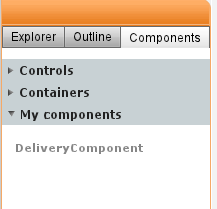
- Open any screen and drag and drop this component into the page as any other component. That’s it. You now have a custom component which can be reused anywhere.
Editing a custom component
- To edit a custom component, select the component, then click Edit Source in Properties panel.
- If you need to separate individual components inside a custom component, select the custom component, then click Break Apart Template. This will break or unlink the components inside and let you use them as any other components individually. Note: this will not affect the custom component. It will still be listed under My components palette
- To delete a custom component, select Project/Assets, then select Custom Components tab. Select the custom component. From there you can edit, rename or delete the custom component.


