Posted: March 29th, 2011 | Author: max | Filed under: Features, New release | Tags: features, release | 5 Comments »
Today Tiggr team released a minor update, release 1.2.6.3. In addition to some behind the scene improvements, we added a user survey (shown only once) and a number of small improvements.
When you login to Tiggr, you might be presented with a survey. It should take you under a minute to complete the survey. Please tell us how you use Tiggr and what features you would like to see.
Web Preview is now a 1-click action. Just click Web Preview button to see how your prototype looks in Web browser. If you need to configure preview, click the down arrow and select Configure.
We have made it even simpler to share your prototype. We have added popular share icons to Web Preview version. In case you don’t want the icons in your Web Preview version, select Web Preview/Configure and uncheck Display share buttons in Preview.

Export to HTML link is now visible right under the project name. It was previously an action in Options menu and many people didn’t know it was there.

We also updated our home page with 3 simple steps you need to take to start creating, sharing and previewing interactive HTML prototypes. Check it out and let us know what you think!
Lastly, we fixed two issues reported by users.
Posted: March 24th, 2011 | Author: max | Filed under: Review | Tags: review | No Comments »
Tiggr review The Pam: Wireframing Tool Review: Tiggr
Posted: March 23rd, 2011 | Author: max | Filed under: Features | Tags: features | No Comments »
What makes Tiggr different from other tools that just let you export a picture is that you can create real and interactive HTML. Every component in Tiggr (and we are going to add more) comes with properties to configure the component. Of course when you preview the prototype in web browser, whatever properties you set will be generated in HTML. You go from a prototype to an HTML prototype - which is really very close the actual application UI.
Let’s take one of the most popular components in Tiggr, the button, and see what properties you can work with.

You can set the button label (that’s kind of obvious). Tiggr prototypes are interactive and let you define navigation between pages. When running in web browser, you will navigate between pages. If you have multiple screens, you can set navigation like this:

Tab Index allows you to set the tab index order when you preview the prototype in the browser and use the Tab key to navigate the input components.
Scrolling farther in properties, you will see other properties you can set shown below. As you can see, you can set everything from padding, margins to standard formatting such as font face, color, size and style. The very last property allows you to set round corners.

Having all the properties is very powerful as you can create real interactive HTML prototypes with actions and events and not just static images. We soon we are going to expand action and events. You will be able to build even more interactive prototypes.
Posted: March 21st, 2011 | Author: max | Filed under: Features | Tags: HTML, sharing | No Comments »
UI prototyping is great and quick way to start your UI requirements. Getting a picture of how the UI looks is much better then trying to describe UI requirements in a text document.
But, it would be even better if you could describe the UI behavior in a prototype. This would make the prototype interactive where you could select menus, change tabs and navigate between pages. This prototypes (shoes) the actual UI logic in the real application. Pretty cool, right?
Lastly, what if you could export prototype HTML, share it or even use it as a starting point for the UI.
You can do all with Tiggr. Tiggr is a Web-based tool for creating, sharing and viewing interactive Web and mobile HTML prototypes. Tiggr allows you to do rapid prototyping, it allows you to create interactive prototypes where you can switch tabs, create navigation between pages (more actions/events are coming soon). And lastly, you can also export prototype HTML. Let me show you how do to that.
There are two ways to do it. First, you can view and share the prototype in a browser. Second, you can export (save) the prototype HTML, JavaScript and CSS.
To view the prototype in a Web browser, select Web Preview/Open. A browser window will open and you will see the prototype (make sure to allow pop-ups for *.gotiggr.com) Note that by default only you can view the prototype URL.
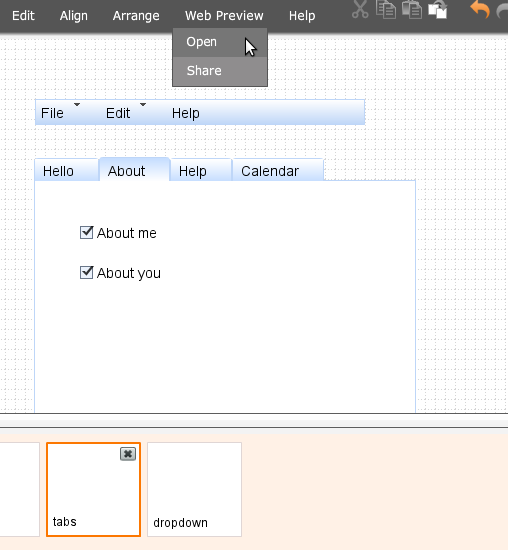
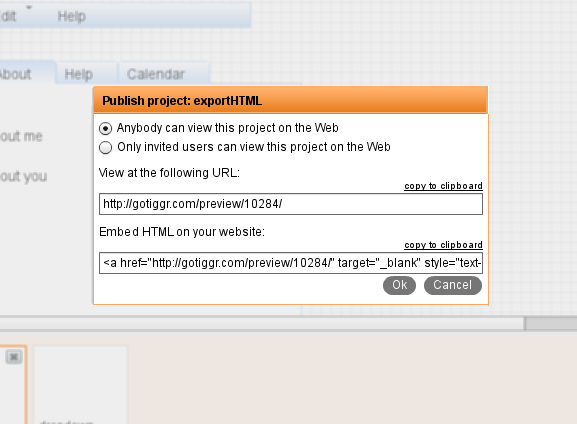
If you want to share the prototype, inside the editor, select Web Preview/Share and select Anybody can view this prototype on the Web. That’s it. You can now share or send the URL and anyone will be able to view it in any browser. You can also perform this in Projects page.
View this prototype
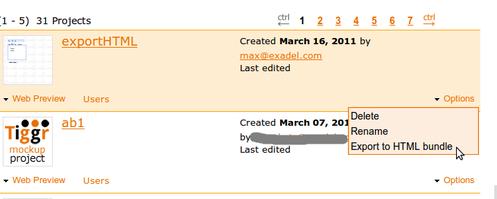
To export (save) the prototype HTML, JavaScript and CSS, in Projects page, select Options/Export to HTML bundle. You will be prompted to save a zip file containing all the HTML, JavaScript and CSS files. You can run it locally, share the zip file, or use it as a starting point for application UI.
Posted: March 15th, 2011 | Author: max | Filed under: Review | Tags: review | No Comments »
Top 3 FREE Wireframing and Mockup Tools – Lumzy, Mockup Builder and Tiggr Compared and Reviewed
Posted: March 15th, 2011 | Author: max | Filed under: article, mobile | Tags: article, mobile | No Comments »
The state of Mobile Web development today is probably what was traditional Web back in 1996. Many companies is racing to create mobile presence, be it in the form of a native applications or mobile Web applications. To set the native vs Web debate a side for now, there is a tool to help you prototype and test your mobile Web applications. You can even use the resulting HTML as a starting point for the application. The prototyping tool is Tiggr. With Tiggr, you can create, share and preview interactive Web and mobile HTML prototypes in a browser. Read more.
Posted: March 7th, 2011 | Author: max | Filed under: mobile, Tiggr | Tags: mobile | No Comments »
Creating Web and mobile interactive HTML prototypes in Tiggr is simple. But what about the iPad (and other tablets)? Well, turns out it’s pretty simple as well. All you need to do is change the prototype screen size to iPad’s (1024×768):

To start your prototype for iPad, don’t forget to switch Screen Type to Mobile.
Posted: March 1st, 2011 | Author: max | Filed under: Review, Tiggr | Tags: review, Tiggr | No Comments »
From JavaLobby: 10 Features You Need When Creating Interactive HTML Prototypes