If you don’t know what Tiggr is, Tiggr is a Web-based mobile apps builder or a mobile RAD (Rapid Application Development) tool. It enables developers to build mobile Web and native apps very quickly. Tiggr comes with a visual editor and jQuery Mobile components. You simply drag and drop components into the phone area.
This makes it very easy to prototype and build the UI. Once you have developed the UI (which you can share and test in browser or mobile device), you define and connect to REST services. Once the service is defined, it is mapped to the UI. A service usually has inputs and outputs. Mapping means taking input from UI (such as input component) and using it as input for the service. On the other side, taking service output and mapping it back to the UI, for displaying the result. One last step is usually adding an event to invoke the service. For example, on a button click the service can be invoked. What I just described is a very easy and fast way to build mobile Web apps. There is nothing to setup or configure, just launch the Tiggr visual editor and start building.
Now, how do you get a native app? That’s where PhoneGap comes in. PhoneGap is an open source framework, it wraps your mobile Web app and gives you access to native device API. To use native features, PhoneGap provides very clean and elegant API. For example, to sound a notification beep twice, you need to call the following:
navigator.notification.beep(2);
Simple, right?
To get device information, the following code is used:
Any native mobile project in Tiggr comes configured with PhoneGap version 1.0. How do you invoke this API when building a mobile app in Tiggr? It’s very simple. Tiggr comes with Run Custom JavaScript action which can be invoked on any HTML event. Let’s take a button. When a button is clicked (click event), you add an action (Run Custom JavaScript) to invoke. That’s it. Inside the Run Custom JavaScript, you can run any custom JavaScript.
You start with a button, we will use the Vibrate button:
Add click HTML event to the button:
Add Run Custom JavaScript action:
and finally add PhoneGap JavaScript call:
navigator.notification.vibrate(1000);
Another option is to create a JavaScript file (Project > JavaScript), write all the custom code there in functions and then invoke any function via Run Custom JavaScript action.
JavaScript file:
Invoking a function from the custom JavaScript file:
Once you use native API, testing in Web browser is no longer possible. To make it super easy to test your native app, you can use Tiggr Mobile Tester. It’s a native app (Android, iOS) which lists all your mobile projects created in Tiggr. You simply tap any app and launch the native app. The app looks like this:
Like what you see? Try Tiggr Mobile Apps Builder yourself!
Tiggr Mobile Apps Builder upgrades with brand-new UI and very cool new features.
Brand-new attractive UI
Tiggr Mobile Apps Builder got a new and very attractive UI. You can see how it looks below but the best way to experience it, is to log in or sign up. You will like it.
Upgraded export-and-build capability with support for Android, iOS, and mobile Web
That’s big one. From the screen shot you can see that it’s now super easy to get the source code and build for Android and get the source code for iOS.
Android binary release (.apk) settings editor
What’s really cool is that you get get an Android binary and immediately publish it to the Android Market. How can you do that? Tiggr has a new Android .apk settings editor where you can enter all the information needed for the Android Market.
Upgraded test capability. Quickly test your app in a browser or on a mobile device
The Test screen has been upgraded. It’s now super easy to test the app in desktop Web browser, mobile Web browser, and on the actual device via Tiggr Mobile Tester.
Support added for REST XML services and for using the POST method
REST services are no longer limited to just JSON response format, Tiggr now supports XML. We have also improved ability to make POST requests.
New service “echo” mode makes it possible to test the app without connecting to the actual service
To make it even easier to work with remote services, we have introduced an “echo” or mock service. Basically, instead of making a call to the actual remote service each time during development, you can invoke a local “echo” or mock service which returns a sample of the real data.
Use custom external JavaScript libraries in your app
To make it simpler to customise and use custom JavaScript, we have added a feature where any custom JavaScript library can be loaded and included in the app.
New Tiggr JavaScript framework to make it simpler to extend your apps with custom JavaScript
Check it out here.
Create and use custom JavaScript functions when mapping service data to the UI
When mapping UI when data source, you can now specify custom JavaScript to run when the mapping occurs
Improved support for HTML5 attributes and support for the HTML5 video tag
We have added HTML5 input types, attributes such as placeholder and HTML5 video tag.
New iPad screen layout
We added project template with iPad layout - to make it simple and faster build apps for the most popular tablet.
If you have have done native mobile app development on Android or iPhone (iOS) then you probably know that testing native apps is not that simple. On the other hand, testing traditional Web applications is pretty straightforward: Launch a Web browser, and you see exactly how the application works and how it looks. Read on and I will show how to test a native app in a similarly straightforward fashion after considering various alternatives.
Option 1: Installing the app on the mobile device
This option is great in that you can test the app on the actual device. However, getting the app on the device can be very time consuming. And, for each testing iteration, the app would have to be built, sent (or copied) to the phone, installed, and launched on the device. While you get to test on the actual device, the process is very slow. Just imagine if you need to make just a small change in the app.
Option 2: Using device emulators/simulators
Getting the app on a device emulator is simpler than getting the app on the actual device. However, now the app is not tested on the actual device, so you may not be getting exactly the same behavior or look-and-feel that you would get on the actual device. Now, this is more of an Android problem than an iOS problem. The Android emulator runs a bare-bones Android version. Most Android phones from HTC, Motorola, and Samsung have their own, slightly modified builds of Android (even the same browser can be slightly different on different devices). Another problems with emulators (mostly Android) is that they are usually much slower than the actual devices, for obvious reasons. While the iOS simulator is pretty fast, the Android emulator is notoriously slow.
The Best Option: Launching the app on the device without installing
I consider this final approach the fastest and most straightforward. It doesn’t require installing the app on the device each time, but you still get to test on the device. This approach uses the Tiggr Mobile Tester app on the device while the mobile apps themselves are developed using Tiggr Mobile Apps Builder.
This tester app only needs to be installed once. The Android version is here and the iOS version is available as an open source version. The app is rather simple. After signing in to your Tiggr Mobile Apps Builder account, it will show a list of all mobile apps (native and Web) created in your Tiggr account. Here is how it looks:
Tiggr Mobile Tester
The most interesting part? Clicking (or tapping) on any project will launch the app. Make any changes to the app in Tiggr? Save the changes, and click the app in Tiggr Mobile Tester. You now get the new version, with all the changes. With this approach we get the best of everything. We don’t need to install the app each time, the app is tested on the actual device and last but not least, it’s very fast.
Still not convinced? Then sign up for Tiggr, create your first mobile app, install Tiggr Mobile Tester (Android or iOS) and test the app.
Earlier this week we released Tiggr version 2.3.2. Most of the updates are for Mobile Apps Builder. There is a new services editor, new jQuery Mobile theme editor and we launched a new help site.
New services editor with test feature
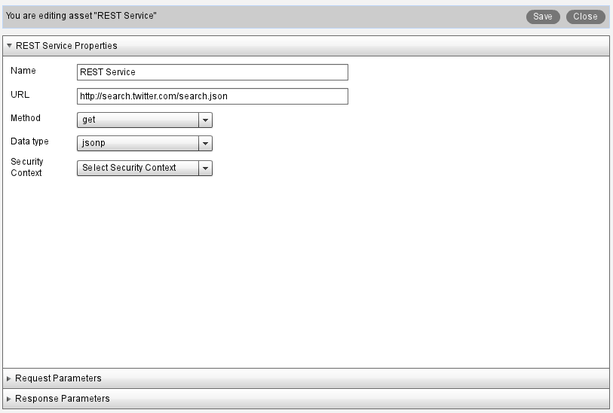
New services editor is now easier to use, it clearly separates service setting (such as name, URL ) and service request parameters and response parameters into separate panels.
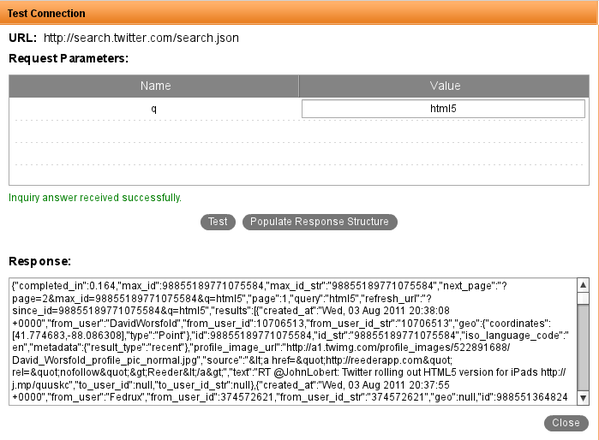
What’s really cool is that you can now test the service right from Tiggr. When entering the request parameters, there is a Test button. This allows you to check that the service works and what soft of output (JSON) is returned.
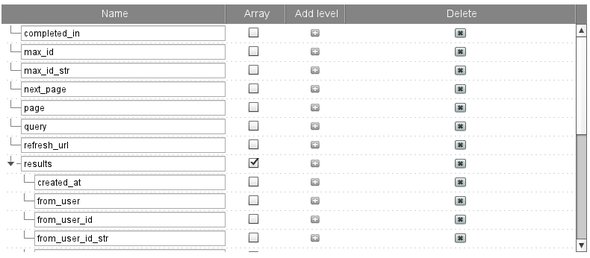
But, there is another very cool feature. Every service returns data and you need to define response parameters (which later can be mapped to components). Some services return many parameters and manually creating each parameter can be tedious. When you test the service there is Populate Response Button. When the button is clicked, all the output parameters from the service will be automatically created. Here is how it looks using Twitter’s search URL (http://search.twitter.com/search.json?q=html5):
Lastly, you can also paste the response from a service to auto create response parameters. This works sort of like an “echo” test. This is useful if you are not able to invoke the service but do know its response format. In Response Parameters panel, click Populate from Sample Response. Then, paste the response.
New jQuery Mobile theme editor
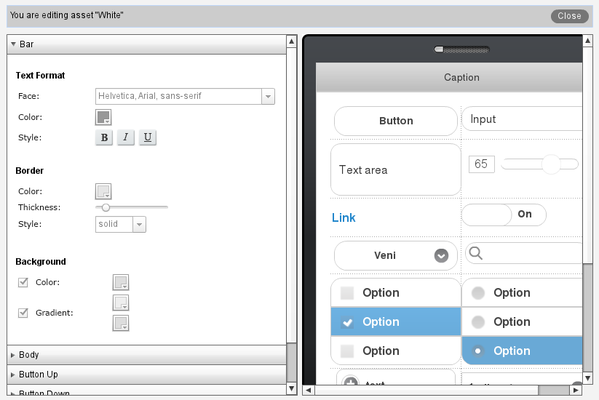
Mobile Apps Builder comes with 6 jQuery Mobile themes out-of-the-box. Now you can also create custom themes. To create one, in Project view, click Add > Theme. You will see the theme editor:
As you modify the theme (on the left), the phone on the right will instantly be updated with the changes.
New help site
We launched a new help and developers site: http://help.gotiggr.com. It’s still work in progress but do let us know if there is content you want us to add.
If you worked with JSON, then you are aware of the cross-domain policy which prevents a script loaded from one domain, to invoke services from another domain. This means that the domain of the requested URL must be the same as the domain of the current page. A number of work around exists but one of the most popular once is using JSONP. JSONP allows a requesting URL from one domain to invoke a service from a different domain. Tiggr Mobile Apps Builder now supports JSONP. Why is this important? Well, it makes very simple to build and test mobile apps in Tiggr. Now a page can be loaded from abc.com domain and invoke a service from xyz.com. Most REST services today support JSONP.
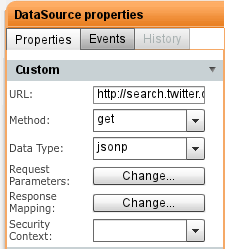
To use JSONP is very simple. When defining REST service, select jsonp for Data Type:
JSONP support
Twitter Search App
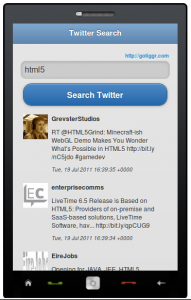
To try this in action, try this Twitter Search app built in Tiggr.
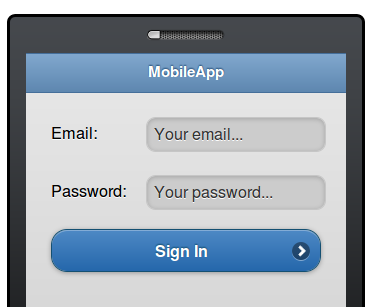
HTML5 introduces a handy new feature for input elements. Using placeholder attribute, you can place a slightly greyed out label inside an input field. When you click on the field and enter text, the label clears. If you delete the input, the placeholder labels appears again. Here is an example (assuming you are using HTML5 complaint browser):
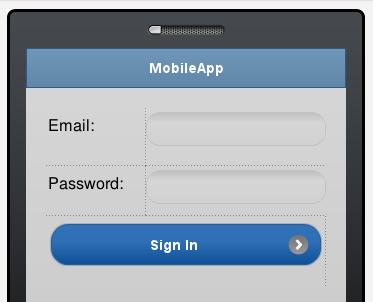
You can do the same thing in Tiggr Prototype Builder or Mobile Apps Builder. Now, it involves a little trick but we will make it much simpler in the near future. Let’s say we start with a screen like this (editor view):
Click the screen outside the phone area, switch to Events view
Click Add Event and select Load
Click the + sign to add an action and select Set HTML Attribute
Component name: find the first input component. Its name should be set to something like ‘mobileinputtextX’ (unless you renamted it)
Property name: placeholder
Value: enter any text you want to see in inside the input
Click OK
Repeat the same for the second input component.
Click Web Preview to view the app in Web browser
To view on your phone, select Web Preview > Configure and select Anybody can view this project on the Web. The open the URL shown on your phone.
Try out this app or via QR code below:
Yes, it’s too many steps to add such functionality. It’s really just a workaround for now. We will make it possible to set any attributes from Properties view, without needing to add event and action.
Check out this interactive prototype. It was complety created in Tiggr using the new events/actions feature.
Every time a new wonder is selected, a different image is shown. On click event, the image src attribute is updated with a new image. When you click Find Out where?, a pop-up opens showing the location of the wonder. Every time a new wonder is selected, a custom location JavaScript variable is set. Inside the pop-up, component which display the location is bound to this variable. Pretty cool, huh?