Kinvey is one of those services that makes building mobile backend way too simple. If you combine Kinvey with a cloud-based app builder Tiggzi, you get everything you need to build an awesome mobile app using cloud services. Let me show you what I mean.
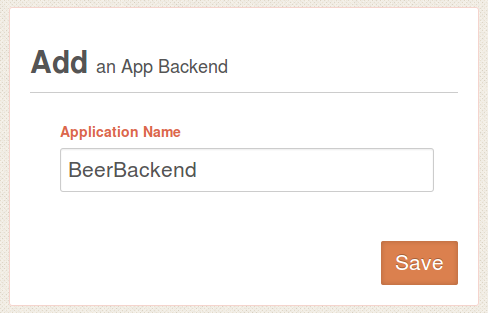
To start, sign up for Kinvey, it’s free and then create your first app backend. We re going to create a backend for beers(!).
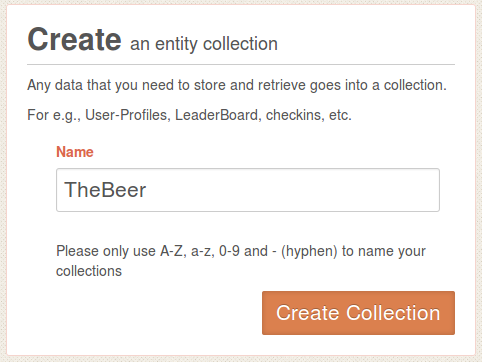
Next, create a new collection where we are going to store names of beer we like:
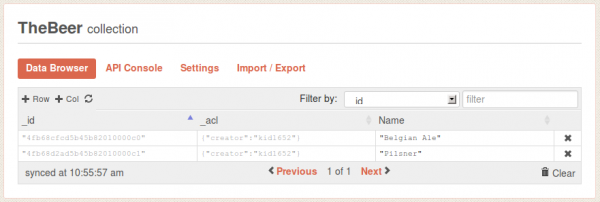
Open the collection. When you open it for the first time it will be empty so we need to define at least one column and enter some data. Click on +Col, and add Name column. Then add a few sample entries by clicking +Row. You can simply double click in Name column to enter values (you don’t need to enter anything for _id or _acl).
That’s pretty much all you need to do. Simple, right?
Let’s now go to Tiggzi app builder and create a jQuery Mobile app.
Tiggzi mobile app builder got some new and cool stuff in May release.
jQuery Mobile 1.1
jQuery Mobile was updated to the latest stable version 1.1.
Windows Phone Export
We just added Windows Phone code export.
We are also planning to add binary build. For now, once you export the project you can jump to PhoneGap Build and get the binary there. Or, you can always build it yourself.
UI breadcrumbs, plus easier delete
A really nice feature in Tiggzi visual builder is the ability to have containers such as grid and place other components inside. To make it super easy to select a particular component we just added breadcrumbs. It makes it very easy to navigate the UI by clicking the component id in the breadcrumbs bar.
In addition to breadcrumbs, we made it very easy to delete an element. Simply click on the red x icon. Clicking on the e icon will open Events view for the component.
Plug-in Properties
With new Plug-in properties, any service information such as API keys can be entered in one place and reused by any number of services. A small but nice feature to save time.
Code generation update
OK, the was requested for a long time. If you name your page MyCoolPage, in the resulting app it will be MyCoolPage.html. If you upload an image called MyCoolImage.png, in the resulting app it will be MyCoolImage.png. Yes, as simple as that, but a very important feature.
In our April release we introduced two new mobile components: Datepicker and Carousel.
Datepicker
Datepicker has been requested by our users and allows to select date from a calendar popup. This is how the component looks when displayed on the page (not activated)
and this is how it looks when activated:
The component comes with a number of useful options such as setting the earliest and latest date you can select. This is great for validation. Setting the Sunday or Monday as start day of the week as well as being able to edit months and days labels.
Note that Datepicker is a plug-in and not yet an official component in the jQuery Mobile library.
Carousel
Carousel consists of one or more panels which can be switched with a swipe (left or right).
The three dots indicate the number of items in the carousel. This component is best tested on the actual mobile device. Also note that only Webkit-based browsers support this component (Android and iOS).
Both components are available in any project (old or new) in the Mobile UI palette.
One of the really nice features we released in Tiggzi Mobile App Builder in April is the option to get iOS binary file for your app (similar to PhoneGap Build).
Export iOS app
Now you can create your mobile app in Tiggzi and instantly build the iOS binary file (or Android).
As we use the standard iOS build process, you will still need to provide your Apple developer information (nothing we can do about that, more information here on how to get it). The information is then set in project profile:
Last week we released a number of small but very useful features.
To delete any component from a screen is now incredibly simple. Select the component and click the red x icon:
When you click the e icon, it will take you to events for the component. You no longer need to open the actual action to see what it does. We have added a tool tip that shows what a particular action does:
Small, but very useful features.
We are also working on breadcrumbs inside the visual builder, to make it even simpler to select components.