Tiggr tips: working with screens
Posted: January 13th, 2011 | Author: max | Filed under: Features | Tags: features, tips | No Comments »Tiggr makes it very simple to work with multiple screens:
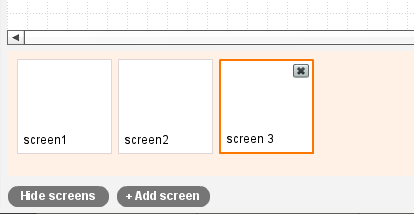
- To add a new screen, click +Add Screen button
- To delete a screen, click X in the upper right corner in the screen. You can also delete by selecting Screen/Delete from the top menu
- To rearrange screen, select a screen and drag it into the new position
- To edit screen name, double click on its label. You can also change screen name in Properties
- Once you are done editing screens, click Hide Screens to hide the panel. This way you will have more room for the prototype
Leave a Reply